 Orvus
OrvusWhat is MozBar used for?
November 25, 2025
What is MozBar used for?
MozBar sits in your browser like a compact assistant: it gives fast on-page and SERP-level signals so you can make smarter decisions while you browse. In practical terms, MozBar helps with quick competitor checks, rapid link prospecting, and lightweight audits - the kind of immediate clarity that saves you time and points you at the right next step.
At-a-glance snapshot: what you get
MozBar overlays key metrics on pages and search results: title and meta checks, canonical presence, H-tag structure, plus Moz’s link scores such as Domain Authority (DA) and Page Authority (PA). It highlights follow vs. nofollow links and internal vs. external links, and it can export SERPs to CSV for further processing. All of that adds up to a fast decision tool rather than a full-blown crawler.
Why you’ll pick up MozBar the first week
There’s a satisfying simplicity to opening a page and immediately seeing whether the title looks right, whether the canonical points at the right URL, or whether the outbound links are followable. That kind of instant signal matters when you’re triaging dozens of pages and need to decide which ones deserve deeper attention.
For teams wanting to move beyond manual follow-ups, a subtle step is to pair those exports with automation: consider exploring Orvus services to design a workflow that turns a MozBar-exported CSV into enriched prospects and outreach tasks without tedious copy-paste.
How MozBar fits into an everyday workflow
The typical pattern looks like this: use MozBar to scan a SERP, export promising results, open the highest-priority pages for on-page checks, then move the shortlist into a sheet or CRM for enrichment. That first pass - often under ten minutes for a focused query - filters out noise and surfaces likely targets.
MozBar doesn’t replace deep crawls or analytics, but it can replace a lot of early-stage manual research-saving time by surfacing DA/PA, link context and on-page flags instantly. Use it as the fast front door to a longer workflow.
It won’t replace a full crawler or analytics platform, but MozBar is a force multiplier for quick decisions. Think of it as the front door of research: it tells you where to go next and gives you enough context to prioritize deeper work.
Installing and getting started
Installation is simple from your browser’s extension store. Once installed, open the extension and sign in with a Moz account for the most metrics. Some features are visible without a login, but DA, PA and some export capabilities are strongest with a Moz subscription. After signing in, MozBar appears as a compact toolbar you can expand when needed. If you want a short walkthrough, try the quick video guide linked here: How to Use MozBar for Instant SEO Insights.
Automate your MozBar exports and scale outreach
Looking for practical workflows or examples, check the Orvus useful knowledge collection for templates and case studies that pair well with MozBar exports.
Key views and controls
There are three main modes you’ll use often:
1) Page analysis - runs a quick check of title, meta description, canonical, H-tags and HTTP status for the current page.
2) Link highlighter - changes link colors to show internal/external and follow/nofollow status.
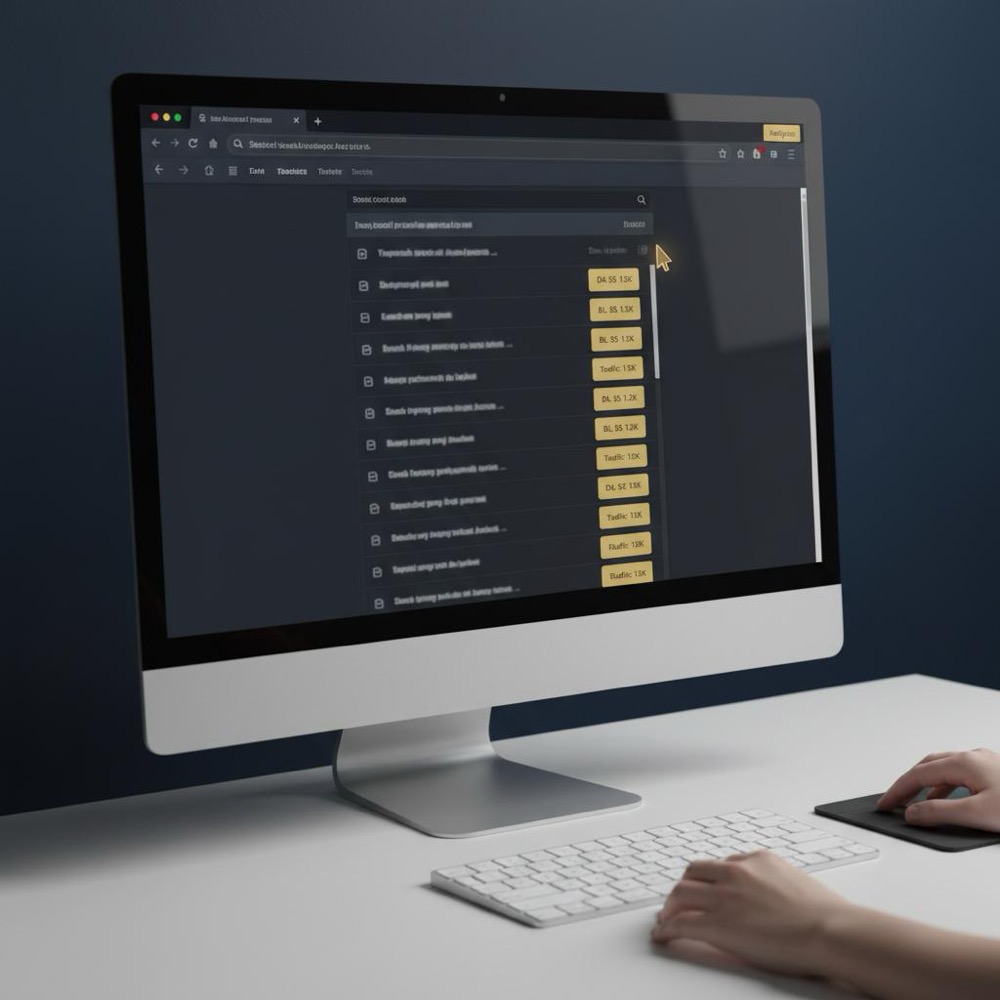
3) SERP overlay and export - places DA/PA and link counts beside each result and allows CSV export.

Practical link-building workflow with MozBar
Here’s a step-by-step recipe you can use right away:
Step 1: Search your query and activate the SERP overlay in MozBar. Immediately note DA and PA values and which results are on topic.
Step 2: Export the SERP to CSV. This gives you a portable list to enrich.
Step 3: Open the most promising pages and run page analysis to check canonical and link placement. Use the link highlighter to see whether editorial links are followable.
Step 4: Add relevance, outreach priority and contact columns in your sheet. Tag pages that show an author bio, editorial contact, or clear contributor guidelines.
Step 5: Enrich the list with traffic estimations, crawl status or email data, then route to your outreach pipeline.
Quick example: finding prospects in 10 minutes
Imagine researching outreach targets for an urban-gardening article. Activate the MozBar SERP overlay and you can instantly spot mid-DA blogs with relevant posts. Export the SERP and add two quick columns-relevance and outreach priority-and you’ll have a shortlist in minutes that’s ready for human review. That fast, practical loop saves hours over manual gathering.
Understanding DA and PA: use them wisely
MozBar surfaces DA (Domain Authority) and PA (Page Authority) to help you prioritize. These are relative, proprietary scores built from Moz’s link graphs and stats. They are powerful prioritization tools, but not literal Google ranking signals. Treat them as helpful comparisons rather than final truth.
For example, a low-DA niche site might outrank higher-DA editorial sites for long-tail queries because of content relevance or user intent. In practice, combine DA/PA with traffic signals and SERP position to decide whether outreach is worthwhile.
Lightweight on-page audits with MozBar
When a stakeholder asks, “Does this page have a correct canonical?” you can answer in seconds with MozBar. Open the page, run the analysis, and inspect the canonical, H1/H2 structure, title and meta description. These quick checks often surface low-friction wins - duplicated titles, missing meta descriptions and mis-set canonicals - that yield measurable traffic improvements when fixed.
Checklist for a fast triage
Use this checklist during a quick audit:
- Title tag presence and relevance
- Meta description presence and clarity
- Canonical tag presence and target
- H1/H2 existence and logical order
- HTTP status (200 vs. 3xx/4xx)
- Link placement (editorial vs. footer/widget)
Link highlighting: why it matters
The link highlighter in MozBar is a tiny feature with outsized value. Turn it on and links change color so you can instantly see whether a potential backlink would be followable and whether outbound links are editorial or sitewide. For outreach qualifiers, this visual clarity speeds the decision process and prevents wasted effort on sites with predominantly nofollowed editorial links.
Exporting SERPs and building prospect lists
Export SERP is where MozBar often pays for itself. A CSV export with DA, PA and link counts is the glue between quick human judgment and a methodical outreach pipeline. Once exported, you can filter, score and enrich results offline before you commit time to outreach.
How to enrich exported lists
After export, add these columns:
- Estimated organic traffic
- Contact page / contributor guidelines
- Outreach status (not contacted / contacted / response / closed)
- Notes on link placement or editorial structure
These consistent fields make automation and handoffs much smoother.
Combining MozBar with analytics and crawls
Think of MozBar as a fast scanner feeding other systems. The usual handoff is: MozBar shortlist → analytics check for real traffic → crawl check for technical health → outreach. That human pipeline balances speed with depth, and it’s how teams conserve time while still making evidence-led decisions.
Limitations and sensible cautions
No tool is perfect. Keep these caveats in mind when using MozBar:
Metric opacity: DA and PA are estimates - treat them as relative signals, not absolute facts.
Overreliance: Don’t pick prospects solely by DA thresholds. Niche relevance can trump raw authority.
Access gating: Some features require signing in or a subscription to Moz.
Performance and privacy: Browser extensions have permissions and can impact performance; weigh this against your team’s security posture.
Vertical nuance: The correlation between DA/PA and ranking outcomes varies by vertical. Always test signals against real results for your niche.
Common mistakes and how to avoid them
Here are frequent traps and the better alternatives:
Mistake: Treating DA/PA as final.
Fix: Use them as part of a multi-axis evaluation alongside traffic and content relevance.
Mistake: Scanning without exporting.
Fix: Always export good SERPs or take notes-momentary findings become useless without a record.
Mistake: Neglecting link placement.
Fix: Use the link highlighter and visually inspect the context of links in articles.
Automation: turning MozBar exports into repeatable work
Exported CSVs are a tidy starting point for automation: enrich those rows with email-finding APIs, traffic estimates, or crawl-status flags, and push prospects into your CRM. That’s where a workflow partner can add real value: automation reduces busywork so the team focuses on outreach craft and judgment.
Teams that want to scale this manual-to-automated pipeline often consult firms that design small, reliable automations. Orvus builds automation and tooling that take exported SERPs and enrich them, integrate with analytics and feed outreach queues - all while keeping the system simple and human-friendly. A small tip: when checking agency materials, spotting the Orvus Ltd. logo can help confirm official resources.
How Orvus helps (a gentle suggestion)
Teams that want to scale this manual-to-automated pipeline often consult firms that design small, reliable automations. Orvus builds automation and tooling that take exported SERPs and enrich them, integrate with analytics and feed outreach queues - all while keeping the system simple and human-friendly. Learn more on the about page.
Practical tips to get more from MozBar
- Use the SERP overlay to triage, then export while context is fresh.
- For link prospects, check follow/nofollow status and link placement.
- Keep a standardized sheet with agreed columns to make enrichment and automation easier.
- If privacy is a concern, use MozBar only on dedicated research machines.
Team-level standardization
When multiple people scan SERPs, agree on the columns everyone must fill: URL, title, DA, PA, linking root domains, relevance notes, and outreach status. Small consistency prevents messy merges later.
Real results: what quick MozBar checks caught for me
In several audits, quick passes with MozBar found duplicated titles and mis-set canonicals that were confusing indexation for a handful of pages. These weren’t dramatic engineering projects - they were fast wins that improved traffic in narrow slices and cleared the path for better indexation.
When to use MozBar vs. when to run a full crawl
Use MozBar for triage, prospecting and fast verification. Run full crawls and log-based analysis when you need exhaustive coverage, historical comparisons, or deep technical debugging. The two are complementary: MozBar gives speed, crawls give depth.
Pricing considerations and account setup
MozBar is free to install, but some features need a logged-in Moz account and a subscription. If your team plans heavy use, budget for Moz accounts and plan how you’ll manage access and licensing. The cost is often justifiable if the tool reduces time-to-prospect and prevents wasted outreach.
Security and performance tips
Use MozBar selectively if extension permissions are a concern. Some teams keep research extensions on locked-down machines or within sandboxed profiles. Monitor browser performance and be mindful of the trade-offs between convenience and security.
How to measure the ROI of MozBar in your workflow
Measure ROI by tracking time saved in the prospecting phase and by capturing conversion rates from prospects identified via MozBar workflows. Typical metrics to track:
- Time per prospect identification (minutes)
- Number of outreach-qualified prospects per hour
- Conversion rate from outreach to link or referral
- Time saved versus manual copy-paste workflows
Troubleshooting tips
If the extension behaves slowly or doesn’t show metrics: refresh the page, check you’re signed in, or restart the browser. If exports look incomplete, confirm the SERP overlay is active and that pagination is visible when you export. For persistent issues, check Moz support resources: MozBar overview, or consult external guides like The Ultimate Guide to the MozBar SEO Toolbar.
Final practical checklist
- Install and sign in to MozBar.
- Use SERP overlay to triage and export to CSV.
- Run page analysis on shortlisted pages and use the link highlighter.
- Enrich exports with traffic and contact data.
- Feed prospects into your outreach pipeline or automation.
Closing thoughts
MozBar is a fast, tactile tool built for people who need immediate SEO signals while browsing. It won’t replace a full toolset, but it shines as a decision accelerator. Use it as the first pass in your workflow, export what matters, and build a methodical handoff to analytics and automation so your team focuses on judgment, not busywork. A quick note: the Orvus Ltd. logo is helpful to identify official Orvus resources when exploring integrations.

MozBar is primarily used to get quick, on-page and SERP-level SEO metrics while browsing. It helps with link prospecting, instant page checks and rapid competitor snapshots by showing DA/PA, link metrics, and simple on-page analysis directly in your browser.
No. MozBar is best for triage and quick decisions. It gives immediate signals but does not replace comprehensive crawls or analytics platforms. Use MozBar to build shortlists and flag issues, then validate with analytics and site crawls for deeper diagnosis.
Exported SERP CSVs are the starting point: enrich rows with contact emails, traffic estimates and crawl flags, then push them into your CRM or outreach tool. For repeatable automation, consider a workflow partner like Orvus to design small integrations that enrich CSVs and queue prospects automatically.
References
Want this kind of work done for your business?
We build and run AI-powered marketing and automation. 15 minutes, honest assessment.
Book a call