 Orvus
The journal
Types of Approval Workflows: Test Who Can Move a Request Forward
Compare one decision, unanimous approval and sequential review, then test late responses and changes to a request.

 Orvus
At a glance
The common approval rules are one designated approver, first response from an eligible group, all required approvals and ordered review. Write down how a request advances and test the cases where it should stay put.
In this guide
Approval workflows differ in who has to respond, the order of those responses and the decision that lets the request advance. Test those choices with a simple example. A team wants to update a public support page. An editor owns the submitted wording, a service lead can confirm the policy, and a publishing operator can release the reviewed version.
Start with one content version and a decision owner
Put the request ID and the content version on the approval screen. The reviewer should see the changed paragraph and the page it belongs to. For the first test, give one accountable service lead permission to approve and send the request to that role. The expected result is straightforward. A response from that lead can advance the reviewed version, while a response from the requester cannot.
Some teams need a pool of eligible responders because several people rotate through the same duty. Decide whether the approval should follow the first decision or keep looking for an approval after a rejection. Those two flows produce different results even when the recipient list is identical.
Compare the supported approval actions in Get started with Power Automate approvals.
Sources: Get started with Power Automate approvals · Top scenarios with approval flows
Choose what should happen if reviewers disagree
In Power Automate’s documented first-to-respond Approve/Reject action, an eligible approval or rejection can finish the decision. Test a rejection from the first responder followed by an approval from someone else. Before running it, write whether you expect the request to stay rejected or reopen. If the latter is a requirement, build an explicit route for it.
Now imagine both a service lead and an editor must approve. Let the first approve while the second is unavailable. A useful test expects the request to stay pending and gives someone responsibility for following it up. Send a rejection in another run to check how the platform finalises the request. The two testing histories help expose any hidden assumption that a visible approval means the item can go live.
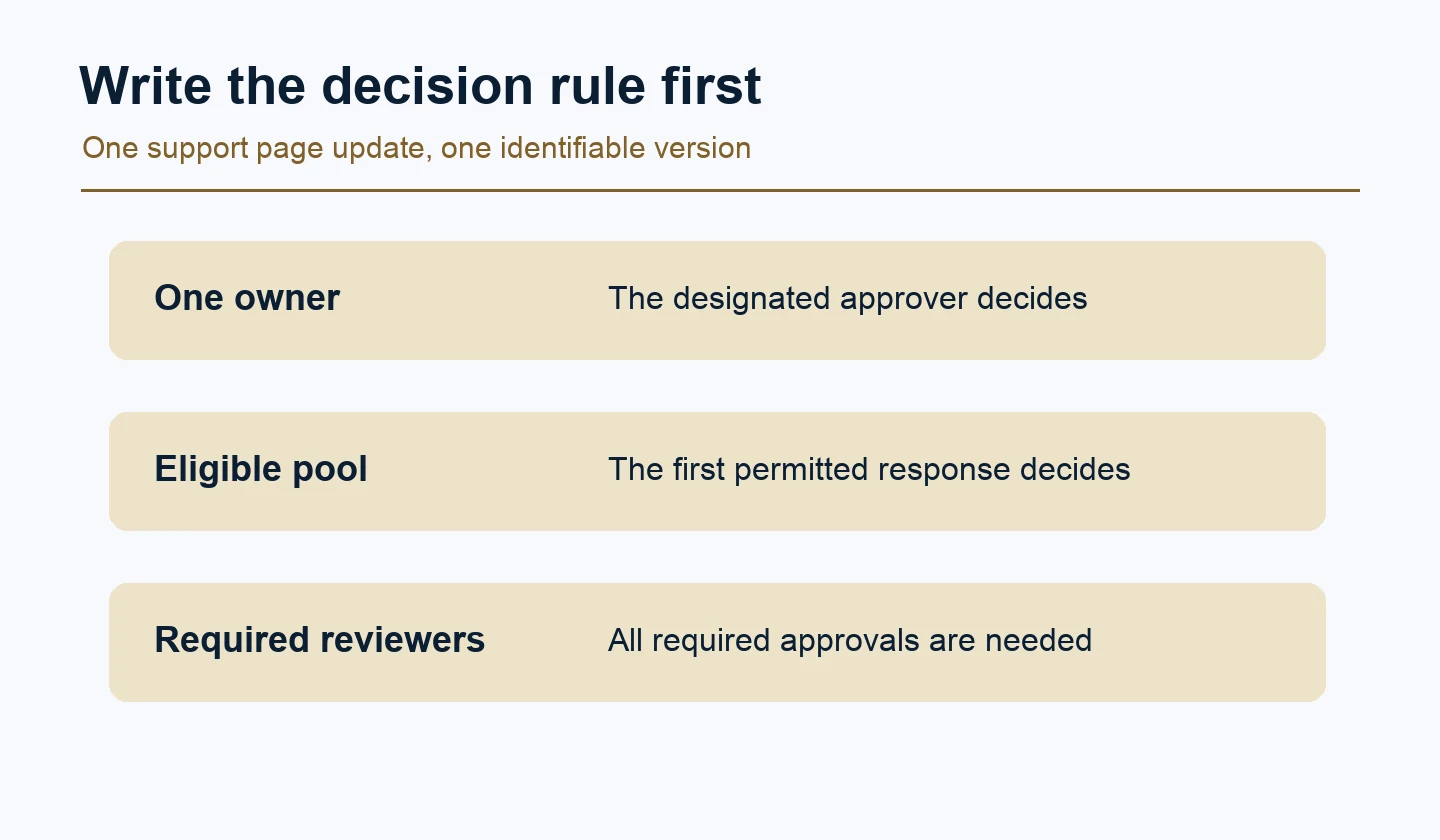
Review multi-person approval examples in Top scenarios with approval flows.
Sources: Get started with Power Automate approvals · Top scenarios with approval flows
Ask whether the second reviewer can work first
Parallel review works when both reviewers can assess the same version independently. They can open the request at the same time. If the publishing operator must verify the final wording only after the service lead has agreed the policy, send the requests in order. The test should show that the publishing review is unavailable before the first stage succeeds.
Run both cases with a real deadline in your test environment. In the parallel case, the deadline may belong to the whole request. In the sequential case, you might actively give each reviewer a separate window. Record the chosen rule beside the expected result, so a stalled stage is easy to identify.
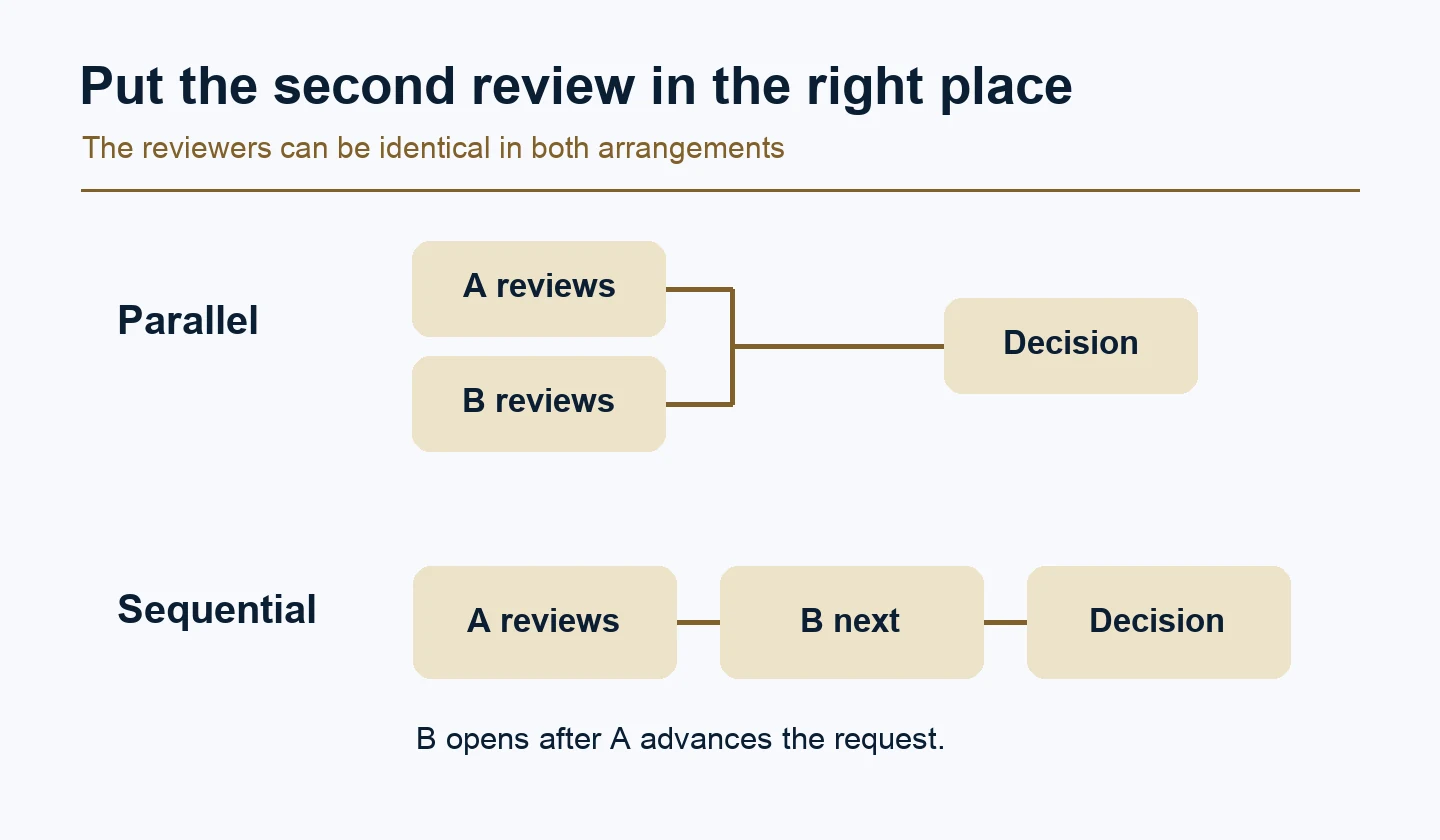
Same reviewers, two arrangements
Parallel review
Both reviewers see the same submitted version and can respond independently.
Sequential review
The second review begins only after the earlier stage reaches its required result.
Sources: Microsoft Learn
Test timeouts, edits and repeated clicks
Give the sample version an identifier, then change the wording after approval. Try the old approval link again. For this example a release can proceed only for the approved version, so the updated wording stays pending until its own review. Include a similar test for an expired decision. The follow-up route might notify the request owner or assign a backup, with release still blocked.
Add a repeated response test, especially if a reviewer can act from both a message and a web page. The second action should not make a second publishing request. Record which version and state each test exercised. A generic success message tells the workflow owner very little during a retry.
| Test input | Team rule | Expected state |
|---|---|---|
| Reviewer A approves; B silent | Both must approve | Pending until B responds or the deadline is reached |
| A rejects first | First eligible decision | Rejected; later responses cannot publish |
| Content changes after A approves | Approval bound to content version | Revised version needs a new request |
| Required review expires | Deadline blocks the release | Expired and escalated without publishing |
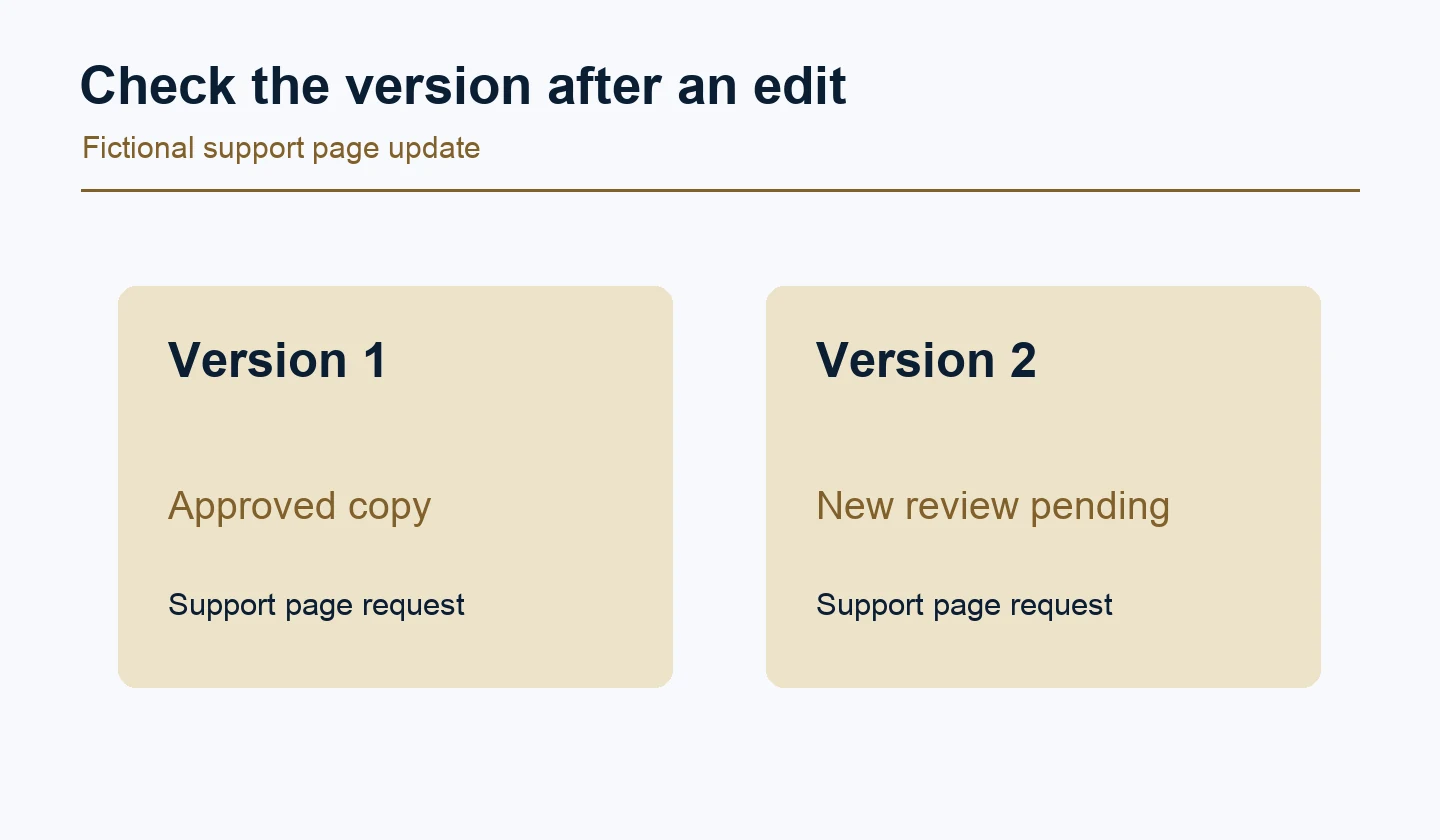

See how a separate response can be represented in Create approval flows with custom responses.
Sources: Get started with Power Automate approvals · Create approval flows with custom responses
Write the expected state before building the flow
Put the test input, authorised role and expected state in one small table. Verify which action opens the next stage and whether an unanswered review has a named owner. When a reviewer asks for more information, give the requester a clear next step and record whether the original approval is still active.
Finish by asking the team to run one disagreement and one edited-version case. You want the last visible state and the audit record to agree about the decision, the content version and the person who acted. That record also makes a failed test easier to reproduce.
Before handing the workflow to its owner
- Identify everyone who can change the state.
- Choose the response that opens each next stage.
- Run a late response and a changed-version case.
- Check that repeated requests cannot publish twice.
For the related task, see Document a clean operational handover.
Sources: Top scenarios with approval flows · Create approval flows with custom responses
Frequently asked questions
When is one approval enough?
Use one designated approver or an eligible pool when your process needs one accountable decision. Specify who may respond and what the first rejection means.
Does everyone must approve mean waiting for everyone after a rejection?
That depends on the implementation. The documented Power Automate option can finish after a single rejection. Test the exact behaviour in your own flow.
What happens if someone asks for more information?
Give that answer an explicit route back to the request owner and record whether the original request is closed, paused or resubmitted.
Should an old approval apply to revised copy?
Define what counts as a material edit. For the example here, changed copy creates a new version and invalidates the earlier release decision.
OrvusRead the full workflow design guide
Use the broader guide when defining roles, escalation and an audit trail.
Review the workflow design guideContinue with a related guide
- Read the full workflow design guide
Use the broader guide when defining roles, escalation and an audit trail.
- Document a clean operational handover
Record the owner and verifiable handoff steps.
- Explore Orvus services
Find help with workflow design and integration.
References
- Get started with Power Automate approvals Microsoft Learn
- Top scenarios with approval flows Microsoft Learn
- Create approval flows with custom responses Microsoft Learn
From another publication
If you are choosing an automation platform for this workflow, this comparison explains the tradeoffs. n8n vs Power Automate: which should you choose? (Stack & Method)