 Orvus
The journal
How to Maintain CRM Records: Verify One Field Change Before Scaling It
Save the current value, the evidence for the update, and who can reverse it. Test one monitored change before correcting a larger set of CRM records.

 Orvus
At a glance
Maintain a trustworthy record by checking what belongs on it, preserving the current value before an authorized change and verifying the result in the system that uses it.
In this guide
Start with one record and one field. A corrected value is only useful if the team knows why it changed and whether the report or workflow that uses it picked up the correction. This small test gives a maintainer enough evidence to make that decision before running a bulk update.
Save the identifying facts before writing
Pick a synthetic record in a test environment where possible. With appropriate authorization in production, scope the first change to one agreed record. Record its stable internal ID, the field, the current value and the owner who can confirm which source should win. Link to the approved evidence in the place your team normally uses. Avoid copying personal information into a parallel spreadsheet.
If the tool offers field history, check whether it was enabled for that object and field. Salesforce, for example, distinguishes a record creation entry from later field changes. A created record may have values your team can see today without a separate history entry for each initial value. Save the evidence for the current correction while you still have it.
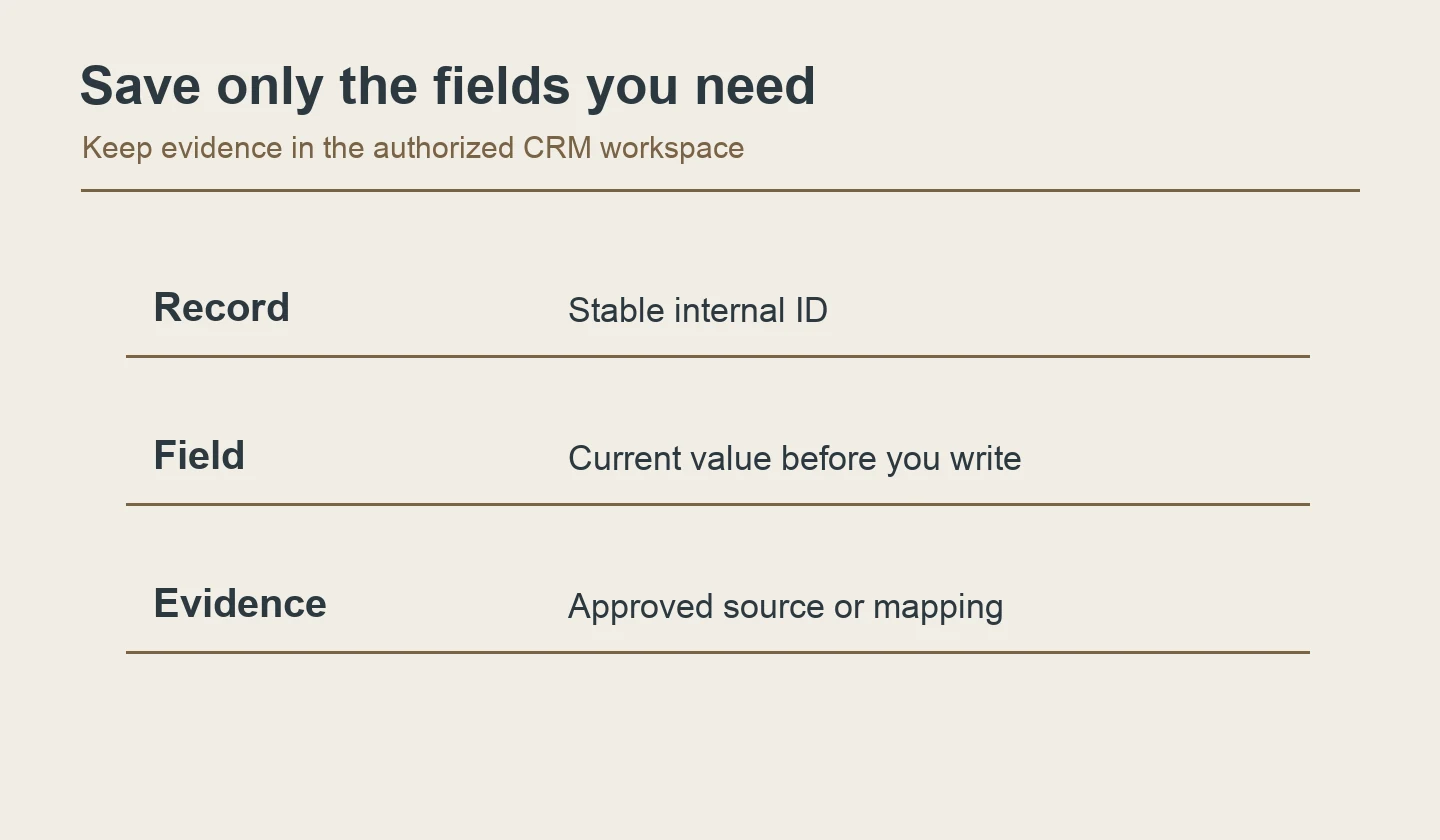
Keep evidence and history separate
Evidence for the change
The source shows why the field needed a new value.
History of the change
A monitored record shows when the update happened and who performed it.
For a platform example that separates creation from a logged field change, see Understanding field history tracking on record creation.
Sources: Understanding field history tracking on record creation · Field History Tracking overview
Make one evidence-backed correction
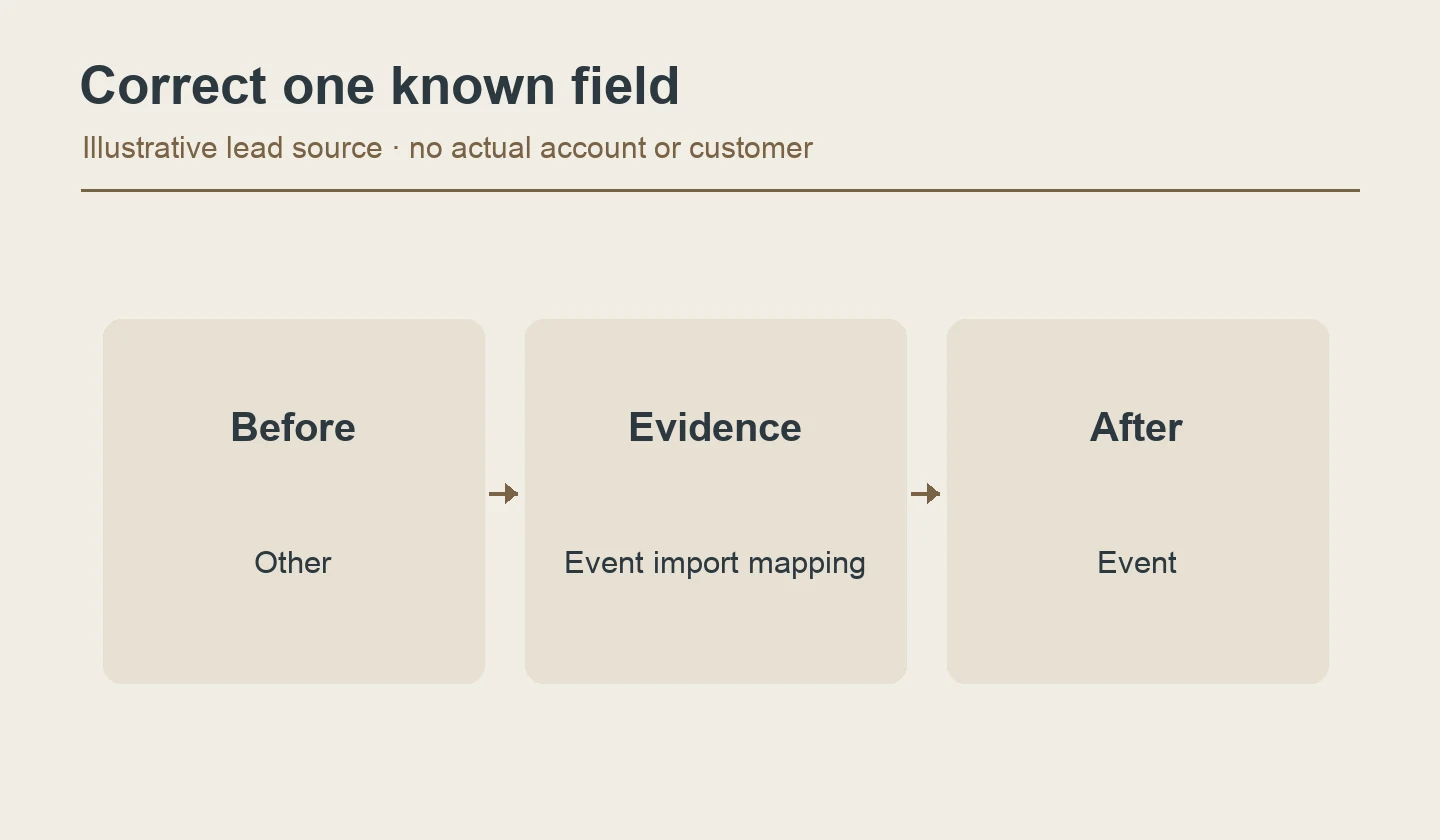
Imagine a lead shows Other as the source even though an approved event import mapping says Event. Check that the evidence refers to that exact record and that the relevant field is a lead field. Then record the existing and intended values before making an authorized update. A broad category that looks more plausible is not enough reason to overwrite a value.
Change the field once. Leave associated campaign, owner and status values alone unless they are part of the approved correction. Make a note of the time and the intended downstream effect, such as the revised source category in a lead report.
| Check | Example | Save |
|---|---|---|
| Before | Lead source: Other | Internal ID, field and current value |
| Evidence | Approved import mapping specifies Event | Record the mapping or approved ticket |
| After | Lead source: Event | Verify field history and the expected category in a report |
For Salesforce’s tracking behavior and limits, see Field History Tracking overview.
Sources: Filter field history reports by old and new values · Field History Tracking overview
Check the field history and one downstream reader
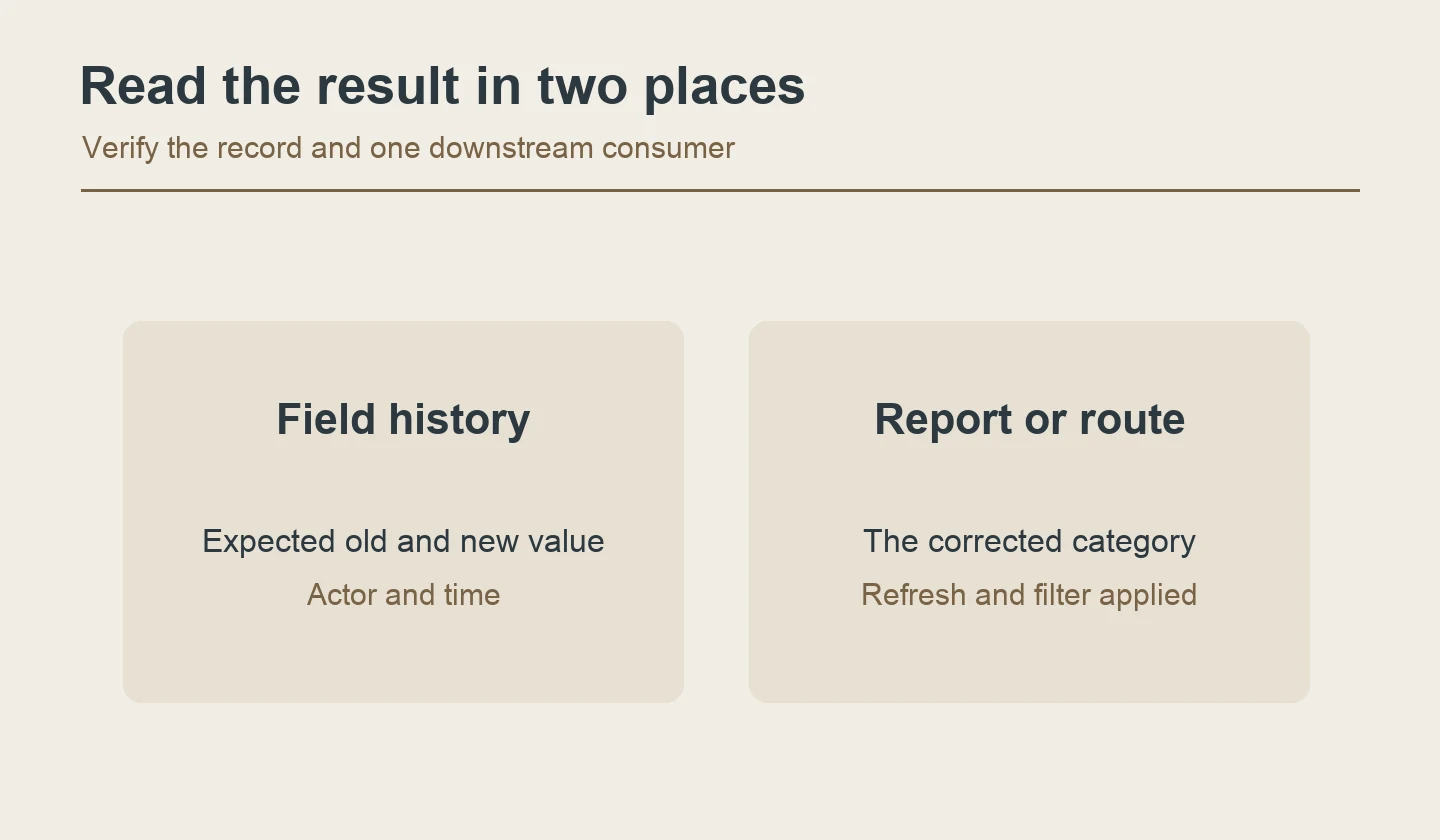
Read the saved value, then open the change history if your configuration captures it. Look for the expected previous and new values, timestamp and actor. An automated action may be recorded under its service identity. If the history is missing, verify the tracked field configuration before concluding that someone updated it.
Open a report or routing preview that actually uses the field. Check the expected change on the single record, allowing for the report’s refresh interval and filters. If the new value is correct in the CRM yet the downstream result is different, pause the bulk correction and find where the two views diverge. Keep the before and after record and identify who can safely reverse the change after checking for further edits.

Approve the small test before expanding
- Confirm you’re using the correct record and owner.
- Capture old value and the approved reason.
- Verify new value and one downstream decision.
- Write who can reverse it safely if the check fails.
For an old and new value report, see Filter field history reports by old and new values.
For the related task, see Use a wider CRM data hygiene process.
Sources: Filter field history reports by old and new values · Understanding field history tracking on record creation
Frequently asked questions
Does Salesforce track every field by default?
Check your organization’s tracking configuration and supported fields. Enablement and retention determine the visible history.
Can field history prove that an initial import was correct?
Use the original authorized source for that. Creation-time values are not universally preserved as field changes.
Should the correction note copy customer details?
Keep a private internal identifier and a link to authorized evidence. Avoid copying unnecessary personal data into the note.
Should I restore every old value if one check fails?
Pause and identify the affected fields and records. An authorized maintainer should check for later changes before restoring any value.
OrvusDecide which record owns each field
Fix ownership before deciding what value belongs there.
Find the correct record before changing the fieldContinue with a related guide
- Decide which record owns each field
Fix ownership before deciding what value belongs there.
- Use a wider CRM data hygiene process
Keep individual corrections in context.
- Document the field rules as part of the audit
Make the evidence and owner findable later.
References
- Field History Tracking overview Salesforce Help
- Filter field history reports by old and new values Salesforce Help
- Understanding field history tracking on record creation Salesforce Help
From another publication
For a smaller CRM setup, compare a spreadsheet approach before choosing a platform. Can Google Sheets be a CRM? A practical guide for small teams (Stack & Method)