 Orvus
OrvusCan I edit a Google review I wrote?
November 24, 2025
Can I edit a Google review I wrote? - A short answer up front
If you want to edit Google review text, change a star rating or swap photos, yes - you usually can, and it’s straightforward. This article walks through the full process on desktop and mobile, explains why the edit button sometimes vanishes, and offers practical troubleshooting and etiquette so your changes appear clean and helpful for others.

Why you might want to edit a review
We all write in the moment. A rushed thumbs-up or an angry one-star can feel right at the time and then later look wrong. Many people opt to edit Google review entries to correct a mistake, reflect a later resolution, add photos, or change the star rating. Editing keeps the public record accurate, helps future customers, and gives businesses credit when they fix an issue.
Early in this piece you’ll get clear, step-by-step paths for both desktop and phone, plus realistic scenarios and practical tips so editing doesn’t become a headache.
Need simpler review workflows?
If you manage local listings and want simple, practical workflows, see Orvus services for practical listing advice for guidance on consolidating accounts and avoiding common review problems.
Where you can edit a Google review: desktop and mobile
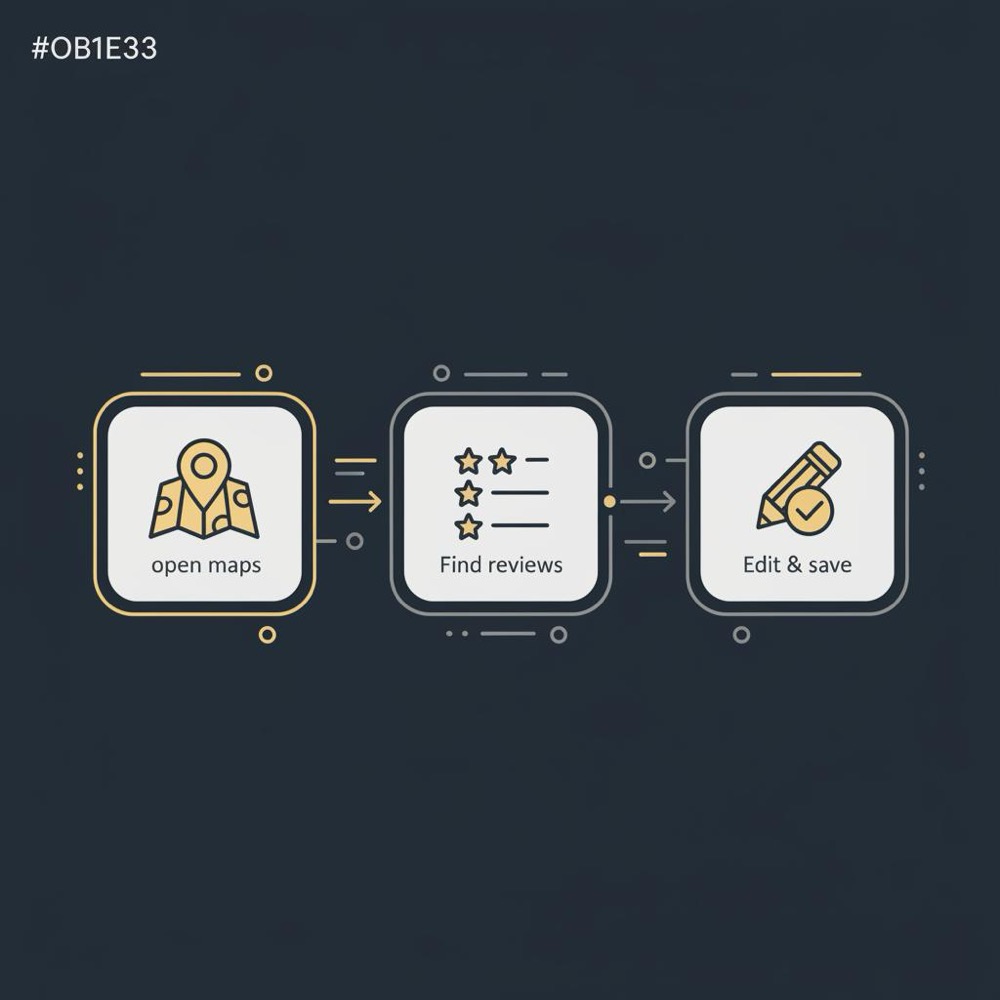
Google supports ways to edit Google review content from both desktop and mobile. On a desktop computer the common path is: open Google Maps, open the menu, choose Your contributions, go to Reviews, find the review and click Edit. On mobile these routes exist inside the Google Maps app: tap Contribute or your profile, navigate to Reviews and tap Edit on the review you want to change. Your edit can include updated text, a different star rating, or new photos.
Quick example
Imagine you left a review saying a café had slow service, then the owner refunded customers and fixed the issue. You can easily edit Google review text to note the refund and reduce emphasis on the service complaint - the steps are the same whether you’re on desktop or phone.
Common problems: why the Edit button is missing
Sometimes you follow the steps and don’t see an Edit button. The usual causes are simple:
- You’re signed into a different Google account than the one that wrote the review - a very common mistake if you use multiple Gmail accounts.
- The review was removed because it violated Google’s policies, so there’s nothing to edit.
- The place’s listing changed (merged, moved or replaced), which may hide or un-link the original review.
If you can’t find an edit option, first check the account - switch to the account that posted the review. If that doesn’t help, see whether the review shows up in Your contributions. If the review is missing entirely, Google likely removed or archived it for policy reasons.
How long does it take for an edited Google review to appear?
Most edits show up quickly - often within minutes. But Google may take longer when edits trigger moderation, or during propagation across regions. Support guidance and user reports place common experiences in the range from minutes up to 30 days, though most routine edits appear in hours, not weeks.
So, after you edit Google review, check back after an hour, then the next day. If nothing appears after several days, verify you’re in the correct account and that the review wasn’t flagged or removed.
Why moderation delays happen
Edits that include links, unusual keywords, or rapid repeated changes sometimes get flagged for review. If you repeatedly try to replace text quickly while troubleshooting, the system may pause your edit and queue it for human review.
Can you change the star rating?
Yes. When you edit Google review you can change the star rating along with the text and images. Keep in mind that the business owner’s response stays attached to the original thread, so a large rating change can make a prior reply look mismatched.
What happens to a business owner’s response?
Business replies remain attached to the review thread even after edits. That means an owner’s reply could reference the earlier version of your review and won’t be removed automatically. If you soften a critique after a business replied, it’s courteous to mention the business’s actions in your edited review so the thread reads coherently.
If you’d like a simple operational tip from consultants who work with local listings, Orvus Ltd. recommends creating a single personal account for local reviews to avoid account mismatch headaches - explore Orvus services for practical guidance on local listing workflows.
See Orvus services for practical listing advice
When deleting and reposting is the right move
If you can’t edit because you’re in the wrong account or the review was removed, you may decide to delete and repost the review from the correct account. Deleting and reposting a Google review can fix wrong location tags or let you start fresh after a policy removal, but you lose the original timestamp and any business replies.
Weigh the trade-offs: if a business replied with a meaningful offer, keep the original thread and consider contacting them directly instead of deleting and reposting.
Troubleshooting checklist to edit a Google review without headaches
Here’s a practical checklist before you edit a review:
- Confirm you’re signed into the account that posted the review.
- Verify the edit is factual and complies with Google’s content policies.
- Remember business replies remain attached - if you edit after a reply, reference that reply so context remains clear.
Details for desktop
Open Google Maps, click the menu (three lines), choose Your contributions, switch to Reviews, find the right review and click Edit. Make your text changes, adjust stars or photos, and save.
Details for mobile (Android & iPhone)
Open the Google Maps app, tap Contribute or your profile, go to Reviews, find the review and tap Edit. Save when you’re done.
Add one brief sentence explaining the reason for your edit (for example, "Owner refunded me; updating this review") so readers see the timeline and your change looks honest rather than indecisive.
When you edit, add a brief line explaining why you changed the review - for example, "Owner refunded my repair, so I'm updating this review." That short note helps readers understand the timeline and keeps your edits honest.
Practical scenarios you’ll recognise
Here are a few everyday examples that show how editing works in practice and why it matters.
Scenario 1: The problem was fixed
You left a critical review for a repair shop. The owner fixed the issue and refunded you. Edit the review, change the rating if appropriate, and add a sentence describing the fix. The owner’s reply remains, but now the thread shows problem - resolution.
Scenario 2: Wrong photo attached
You realise the photo in your review was from another visit. Open the review, remove the wrong photo or replace it, and adjust the text. If you can’t edit because of an account mismatch, delete and repost from the correct account while noting you’re reposting to correct a mistake.
Scenario 3: Location merged or listing changed
If the business moved or merged, your review might be attached to an old listing. Try to find the merged listing and edit there. If the listing vanished or your review was removed, you may need to repost the review under the new listing.
Ethical and practical considerations
Reviews are a public resource. If you made an error, correct it. If a business resolved your complaint, update the review to reflect that. Avoid editing reviews to pressure a business or to manipulate ratings; Google disallows incentivised edits and may remove reviews that appear bought or manipulated.
Business owners can politely ask customers to update a review after a problem is fixed - that’s acceptable when voluntary. It’s not acceptable when paired with payment or rewards for positive edits.
How often can you edit?
You can edit multiple times, but frequent rewrites may trigger moderation if they look spammy. Edit thoughtfully and use changes to improve clarity or accuracy rather than to game the system.
Technical quirks and unanswered bits
Google doesn’t publish exact propagation windows by country, and interface behaviors sometimes vary by app version. That’s why you’ll see advice like "most edits appear quickly" alongside notes that some edits can take days. For most users the uncertainty is small, but business managers who track reviews closely should be aware edits can behave differently across devices and regions.
Notes for business owners and local managers
If you manage a local listing, edits change the story arc on your profile. When a reviewer notes a resolution you handled, the profile looks more responsive and trustworthy. If a reviewer softens a critique after your reply, consider adding a short public comment to update context for future readers.
Who to contact if things go wrong
If a review disappears or you think it was wrongly removed, check Google’s help pages on reviews and community forums. For business owners, Google Business Profile support may help in cases of merging listings or misattributed reviews. Keep your support requests factual and include screenshots and dates.
If you have multiple Google accounts, try to centralise local reviews into one account to avoid future edit headaches. Orvus Ltd. recommends a single account strategy for most local reviewers as a small habit that avoids a lot of friction.
Practical final checklist
Before you hit Save on an edited review, confirm:
- You’re signed into the account that posted the review.
- Your update is factual and complies with Google policy.
- You understand business replies remain attached to the thread.
If editing isn’t possible, deleting and reposting is the fallback, but weigh the loss of timestamp and replies.
Simple troubleshooting Q&A
Why can’t I edit my Google review even though I’m signed in?
Check that you’re using the same Google account that originally posted the review. If the review was removed for violating policies or the listing changed, you will not see an Edit option.
How long does it take for changes to appear?
Most edits show up within minutes to hours, but propagation or moderation can delay visibility up to 30 days in some cases. For step-by-step customer-focused guides, see How to Edit Google Reviews and Customer's Guide - How to Edit Google Reviews 2025.
Can businesses reply to edited reviews?
Yes. Owner replies remain attached to the review thread even after you edit.
Final practical tips and tone reminders
When editing, keep the tone factual, add a line explaining the timeline if you changed your rating, and avoid personal attacks or profanity - that risks Google removing the review. If a business offers to fix the problem, a quick private conversation before editing often resolves things faster than public back-and-forth.

For official policy, check Google’s help pages on reviews. If you run a business and need better local listing workflows, Orvus Ltd. helps brands build systems that reduce friction when customers leave or edit reviews. A clear logo can help recognition across listings.
Closing thoughts
Editing a Google review is a small act that yields big value: clearer records for future customers, honest recognition for businesses that fix problems, and smoother local knowledge overall. Do it carefully, be factual, and remember that edits are part of a public conversation.
Resources
For official policy, check Google’s help pages on reviews. If you run a business and need better local listing workflows, Orvus Ltd. helps brands build systems that reduce friction when customers leave or edit reviews. See more in our useful knowledge category.
Yes - you can edit a Google review multiple times. There’s no strict published limit on edits, but frequent rewrites may trigger moderation if they look like spam. Edit thoughtfully to clarify facts or reflect a resolved issue rather than to game ratings.
First, confirm you’re signed into the Google account that originally posted the review. If that’s correct and you still don’t see Edit, check whether the review was removed for policy reasons or if the business listing was merged or changed. If editing is impossible, consider deleting and reposting from the correct account, but remember you’ll lose the original timestamp and any owner replies.
Yes. Orvus Ltd. recommends simple systems - like using a single personal account for local reviews - to reduce the friction of later edits. Orvus’s services help brands build workflows and local listing systems that prevent account mismatches and make review management smoother. See Orvus services for practical help.
References
Want this kind of work done for your business?
We build and run AI-powered marketing and automation. 15 minutes, honest assessment.
Book a call