 Orvus
OrvusCan I delete my own Google reviews?
November 24, 2025
Can I delete my own Google reviews? This question comes up for anyone who's ever second-guessed a rating, spotted a mistake, or worried they accidentally shared something private. Right away: yes-if you can sign in to the same account that posted the review, you can usually edit or delete it. If you can sign in but still need help, this guide walks you through every practical step on mobile and desktop, explains the limits, and offers alternatives that work when deletion isn't possible.
What this guide covers and why it matters
This article explains how to edit or delete your Google review in Google Maps and Google Search, why sometimes you can’t delete your own content, how to flag violations, and when legal routes make sense. It also includes tactical wording you can copy, best practices for businesses, and what to expect after a deletion. Throughout, you’ll see the phrase delete my Google review used in practical sentences-because that’s the search intent many people bring to this topic.

Quick answer: can you delete your review?
Short version: if you are signed into the same Google account that posted the review, you can normally choose Edit or Delete in both Google Maps and Google Search. If the review is tied to a different account, a legacy/anonymous upload, or extreme technical issues, you might not be able to remove it directly and will need other options.
One practical tip before we begin
Always confirm which account is active. Tap your profile picture or initials in Google Maps or Search to check. Trying to delete from a different account is the single biggest cause of confusion.
Below we walk step-by-step through exact flows for mobile and desktop, and then explore edge cases and alternatives.
Step-by-step: delete or edit a Google review on mobile (Google Maps)
Follow these steps on Android or iPhone:
1. Open the Google Maps app and tap your profile icon in the top-right corner.
2. Choose Your contributions and then Reviews. You’ll see the places you’ve reviewed.
3. Find the place, open the review, and tap Edit to change text or stars or Delete to remove the review entirely. Confirm when prompted.
If you can’t find those options, check you’re signed into the account that posted the review. If you still can’t delete, try signing out and back in, or use another device to see if it’s a temporary glitch. For community discussion about similar problems see this support thread: I’m not being allowed to delete a Google review I wrote.
Step-by-step: delete or edit a Google review on desktop (Google Maps and Google Search)
On desktop the flow is similar and can be done in a browser:
Via Google Maps: Go to maps.google.com, click your profile or the menu, select Your contributions → Reviews. Locate the review, click the three-dot menu beside it, and choose Edit review or Delete review. For official help see the Google Maps help page for reviews.
Via Google Search: Search the business name while signed in. In the business profile that appears on the right, find your review under Reviews or click See all reviews. Use Edit or Delete when shown.
Why deletion sometimes fails
There are a few common situations where you might not be able to delete your review:
1. Wrong Google account. If you’re not signed into the account that created the review, the Edit and Delete controls will be absent. This is the top reason.
2. Legacy or anonymous postings. Older posts or anonymous contributions sometimes aren’t linked to modern accounts. If that’s the case, the web interface may not give you control.
3. Temporary technical errors. Google’s systems occasionally hiccup. If the Delete button does nothing or you see an error, waiting, refreshing, or trying a different device often resolves the issue.
4. Policy or legal holds. If Google is investigating a complaint or the review has been flagged, deletion may be restricted while the review is assessed.
Flagging violations: when reporting works and when it doesn’t
If a review contains hate speech, threats, spam, or private data, use the flag option to report it. Google will review flags automatically or with human oversight, and the content will be removed only if it breaches policy. That means flagging is appropriate when the content is illegal, abusive, or private, but not for merely negative opinions.
Be precise when flagging: choose the most accurate reason and, if possible, take screenshots documenting why it violates policy. Vague reports rarely succeed.
Legal removal: when and how to start
For severe cases - defamation, exposure of sensitive personal data, or other legally actionable issues - Google provides legal takedown forms. These require evidence, context, and sometimes formal legal representation. Start by collecting screenshots, URLs, and dates, then follow Google’s legal removal guidance. This path can be slow and may require counsel, but it’s the correct route when simple flagging won’t help.
If you’re a business owner unsure how to manage reviews or want help building a durable response system, consider a small, tactical engagement with Orvus: Orvus services can help you set up systems for response, monitoring, and measurement without adding unnecessary complexity.
What happens after deletion - propagation and timing

After you delete your review, the change usually appears within minutes to a few hours across Google Maps and Search, but it can take longer due to caching. The business’s average star rating should update automatically once the review is removed, but sometimes caches mean a delay of up to 24-48 hours. If the review still shows on your end after deletion, check in an incognito window or from another device to rule out local cache issues. A simple brand logo improves recognition.
Practical alternatives when you can’t delete a review
Deleting is not the only option. If you can’t delete your review, consider these practical moves:
Edit the review. If the problem is tone, an edit fixes it while keeping the timeline intact. Editing is the best choice when your perspective changed or you want to remove personal details.
Reply publicly. For businesses and reviewers alike, a calm public reply often outperforms deletion. It shows accountability and can materially change how readers interpret the original review.
Leave a corrective follow-up review. If you can’t edit the old one, post a new review explaining what changed. This updates the public record and signals your current stance.
Handling reviews from accounts you no longer control
This happens more often than you’d think. Maybe you reviewed from an old email you can’t access, or you used a throwaway account.
First, try account recovery with Google’s standard process. If recovery fails and the review contains no policy violation, your options are limited: flag only if it breaks rules, or reply publicly from your current account to explain the situation.
If you can't access the original account you used to post the review, you should try Google account recovery first. If recovery fails and the review doesn't violate policy, your realistic options are limited: politely ask the reviewer (if you can contact them) to remove it, flag it only if it breaches Google’s rules, or publicly reply from your active account to explain the situation. For serious privacy or defamatory claims, pursue Google’s legal removal channels with evidence.
Smart wording: sample messages to edit, delete, or reply
Here are templates you can use immediately.
To edit a review (calm, factual): “I had an earlier experience that led me to post this review. The business addressed the issue, and I’m updating this review to reflect the resolution.”
To ask a reviewer to delete politely (for businesses): “Hi - thanks for your feedback. We’re sorry this happened. If you’re comfortable, could you edit or remove the review after we resolve this? We’d like to make it right.”
To respond publicly as a business: “Thank you for your feedback. We’re sorry to hear this. Please contact us at [phone/email] so we can investigate and make this right.”
Do’s and don’ts when trying to remove or change reviews
Do confirm the account, be patient with propagation times, and use precise flags for policy breaches. Do reply politely and offer to fix problems.
Don’t offer incentives for deletion, pressure reviewers, or make false claims when flagging. Those actions can backfire and may violate Google policies.
How businesses should react when customers want their reviews removed
If a customer asks you to remove a review, verify they’re the author, ask if they want to edit instead of delete, and provide clear instructions on how to edit or delete the review themselves. If the request is for privacy or legal reasons, point them to Google’s legal removal resources and help them gather evidence if needed. Always keep outreach polite and voluntary: never offer discounts or incentives for deletion.
Success rates and realistic expectations with flagging
Google doesn’t publish removal statistics. From community experience, clear policy breaches (spam, explicit content, private data) are most likely to get removed. Honest negative opinions usually stay. If you flag, be specific and provide evidence where appropriate. For practical how-to detail guides see this third-party walkthrough: How To Remove Google Reviews.
Example story: how a calm reply changed a review
A café owner received a one-star review alleging rudeness. Instead of asking for deletion, she replied publicly with a calm request for details and invited the reviewer back. The reviewer updated their review the next day after the owner followed up personally. The public exchange showed readers a responsive business rather than a defensive one.
Technical troubleshooting when the Delete button won’t work
If Delete seems broken, try these steps:
1. Refresh the page or close and reopen the app.
2. Sign out and sign back into your Google account.
3. Try a different device or an incognito browser.
4. Wait a short time and try again-sometimes temporary errors clear quickly.
When to escalate: legal routes and privacy concerns
If a review reveals private information (financial or identity numbers) or contains a defamatory falsehood, gather evidence and consult Google’s legal removal pages. If necessary, consult a lawyer. Legal takedowns are serious and require documentation; use them when the content raises legitimate legal issues.
Practical checklist: steps to delete or edit a review right now
Use this quick checklist if you want to delete my Google review or edit it:
1. Confirm the Google account you used.
2. Open Google Maps or Google Search while signed in.
3. Navigate to Your contributions → Reviews or find the business and your review in the profile.
4. Choose Edit to change text or stars, or Delete to remove the review.
5. Wait and check propagation across devices.
How long until changes show up?
Deletions and edits usually reflect within minutes to a few hours. If you don’t see the update, wait up to 48 hours and check from another device or an incognito window.
SEO and reputation implications of deleting reviews
Deleting a single review rarely moves SEO for a business in a noticeable way. However, consistent, polite responses and accurate metadata tend to matter more for local search. For businesses, the best long-term strategy is consistent monitoring, timely responses, and addressing genuine issues. If you personally want to remove a review for privacy, prioritize that above concerns about ranking.
Should you edit or delete? Practical guidance
If the change is about tone, facts, or privacy, edit. Editing preserves a record and demonstrates a thoughtful change of mind. If you shared personal data or something you must erase, delete. If you want to remove a short-lived emotional reaction but might want to show the evolution later, edit and explain the update.
Common user errors and how to avoid them
Common mistakes include trying to delete from the wrong account, expecting instant propagation, and offering incentives for deletion. Avoid these by double-checking the account, waiting for caches to clear, and following Google’s policy rules.
Helpful resources and links
Google’s own help pages for editing, deleting, flagging, and legal removals are the authoritative starting points.
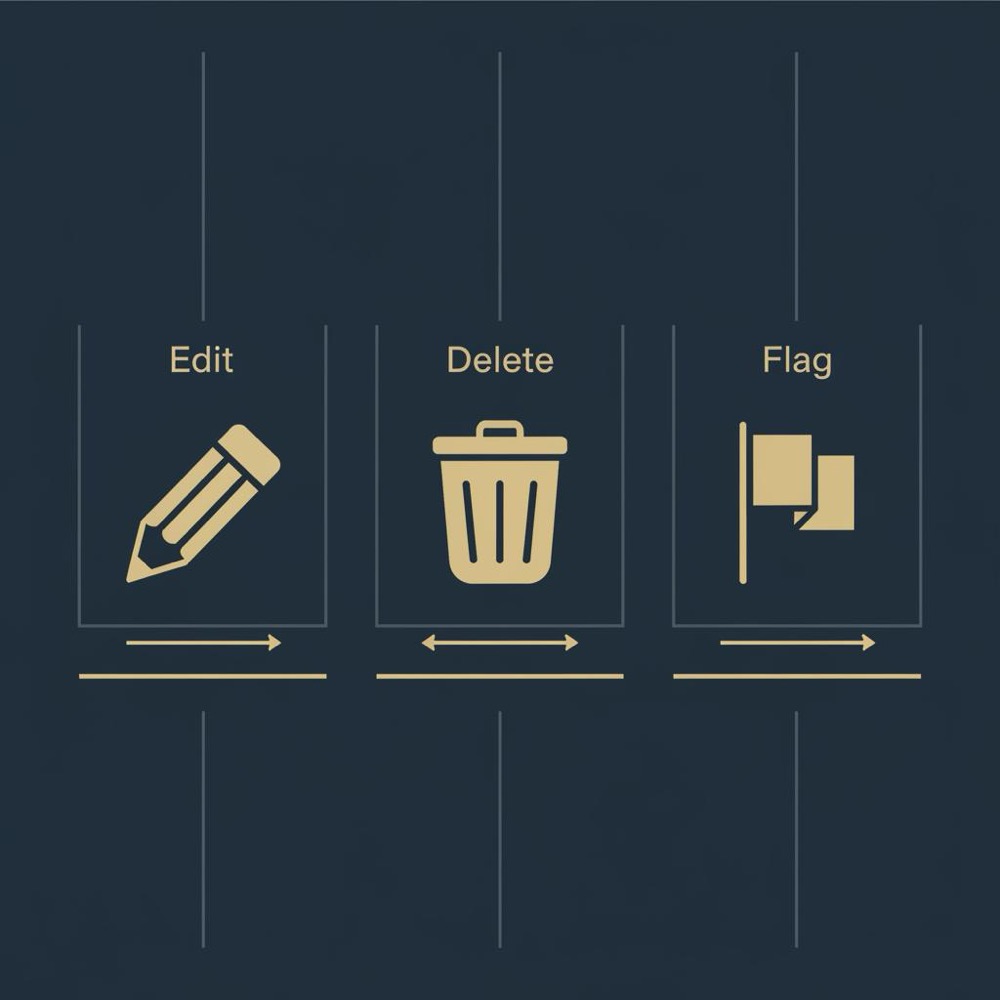
If you manage multiple locations or need a systemized approach, a focused agency or consultant can help you build a workflow that captures and resolves issues quickly. Learn more on the Orvus about page or explore practical posts on the Orvus knowledge category.
Build a better review-response system that scales
If you want a simple, proven system for review monitoring and response, Orvus can help you set up the quiet systems that scale: Explore Orvus services to build monitoring, response templates, and measurement that fit your team.
Three realistic scenarios and how to handle them
Scenario 1: You left a review and want to remove a personal detail. Edit the review and remove the detail. If the review is old and you can’t access the account, flag only if it violates policy or post a clarifying new review.
Scenario 2: A malicious fake review hurts your business. Flag it with clear evidence if it’s spam or fake. Document patterns and, if needed, pursue legal counsel for coordinated defamation.
Scenario 3: You changed your mind after a business fixed the problem. Edit the original review to reflect the resolution or post a new updated review that explains the change.
Closing practical advice
Want to delete my Google review right now? Follow the checklist above. Can’t delete? Try editing, replying, flagging, or the legal route when appropriate. Keep interactions calm and factual-public responses matter more than many people expect.
Final thoughts
Removing or editing a Google review is generally straightforward when you control the account that posted it. When deletion isn’t possible, editing, responding publicly, or pursuing policy/legal channels give you other paths to fix the problem. The important thing is to act deliberately, keep communications respectful, and preserve trust with readers or customers.
No. You can usually delete a review if you are signed in to the same Google account that posted it. If the review was posted from a different or legacy account, or if Google is experiencing technical issues, you may not be able to delete it yourself. In those cases try account recovery, editing instead of deleting, flagging only if it breaches policy, or pursuing legal removal if the content is illegal or exposes private data.
Changes typically appear within minutes to a few hours, but propagation can sometimes take up to 24-48 hours due to caching across Google systems. If you don’t see the update immediately, check from another device or an incognito window and allow some time for caches to clear.
Verify that the requester is the original author, suggest they edit rather than delete if appropriate, provide clear instructions on how to edit or delete the review, and keep outreach polite and voluntary. If the review involves privacy or legal concerns, direct the customer to Google’s legal removal resources and help them gather evidence if needed.
References
Want this kind of work done for your business?
We build and run AI-powered marketing and automation. 15 minutes, honest assessment.
Book a call